18-Week Computer Literacy Curriculum
This curriculum provides a structured introduction to computer literacy for young beginners (roughly ages 7–12, with adult guidance as needed). It blends guided instruction with independent exploration to help learners develop confidence using computers for communication, creativity, problem solving, and digital citizenship.
The program works in classrooms, homeschool settings, libraries, and after-school programs — anywhere an adult can guide a young learner through hands-on exploration. It progresses from basic computer interaction toward creative digital projects, gradually introducing concepts like coding, media creation, information literacy, and generative AI.
Lessons are intentionally hands-on, interest-driven, and flexible, allowing the facilitator to adapt activities based on the learner’s curiosity and pace while still pushing students to analyze, evaluate, and create.
For detailed setup guidance, pacing options, and environment tips, see How to Use This Curriculum.
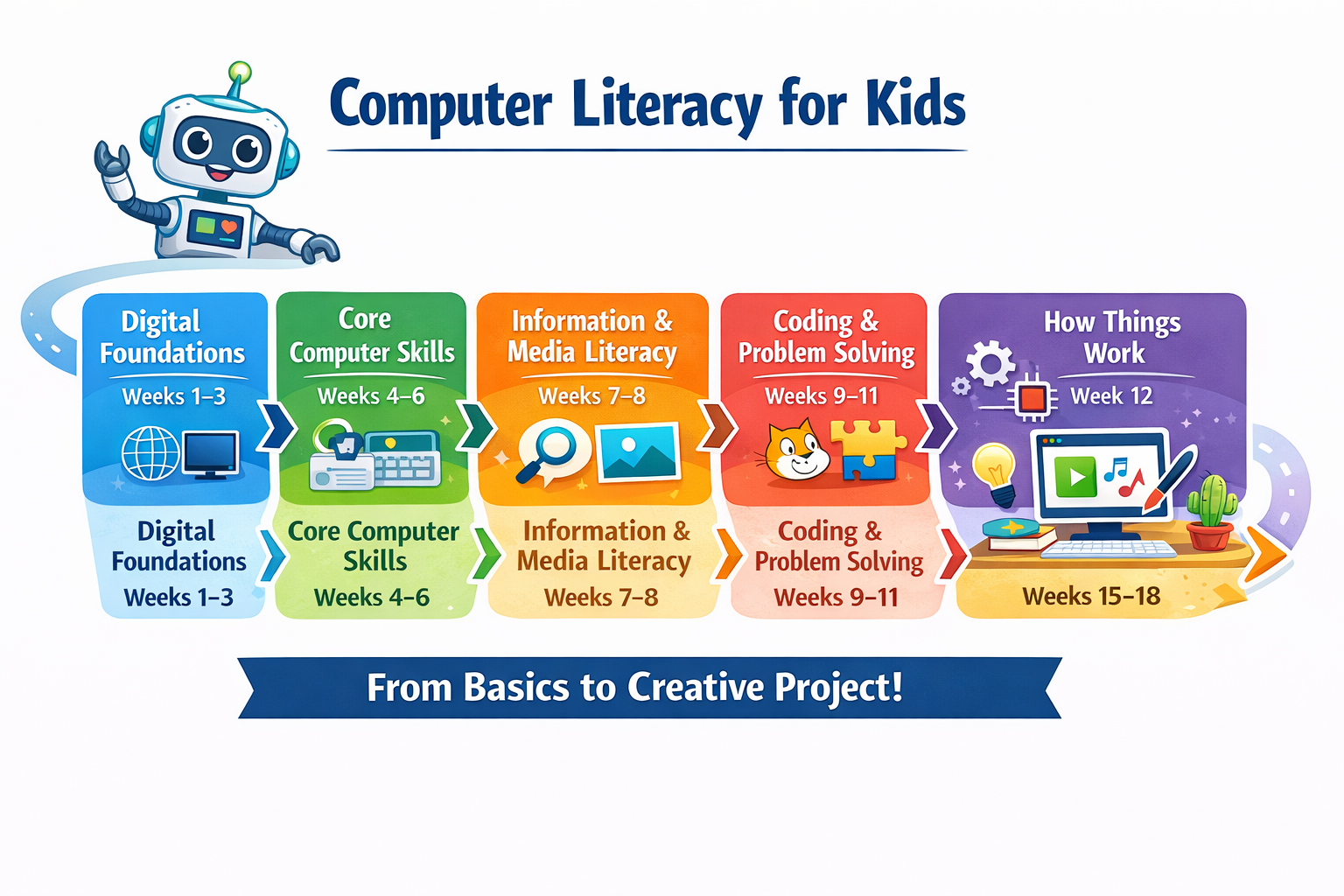
Use this roadmap image when you want a quick visual summary of how the full sequence fits together before reading the detailed weekly breakdown.
- Review Curriculum Overview for pacing and facilitation assumptions.
- Use Program at a Glance to jump to a specific week quickly.
- Check Optional CAD Extension for the bonus 3D design track.
- Open Learning Ladder: How Skills Build Over Time to see how the course connects.
- Save Independent Session Setup Tips for logistics.
- See Assessment & Progress and Tool Alternatives for additional planning support.
- Check the Competency Map to see what learners should be able to do at each stage.
- Use this page as your roadmap before the course starts or whenever you need to find the right lesson quickly.
- The week-by-week table is the fastest way to jump into a lesson page.
- If you are planning lighter weeks, the optional CAD extension can stay separate from the main 18-week sequence.
- For accessibility and adaptation guidance, see Adaptations & Accessibility.
- For a one-page weekly summary with tools and artifacts, see Curriculum at a Glance.
- For checklists and templates, see the Facilitator Toolkit.
Curriculum Overview
Target Audience
Young beginner computer users (roughly ages 7–12).
Basic reading ability is helpful, but adult guidance is expected.
Weekly Structure
Each week contains:
- Two guided sessions (about 30 minutes each)
- One independent session (about 20 minutes)
Guided sessions introduce concepts and tools.
Independent sessions reinforce skills through creative exploration, reflection, and purposeful revision.
Students regularly explain observations, compare choices, evaluate results, and revise their work.
Typing Practice
Beginning Week 4, incorporate 5–10 minutes of typing practice during guided sessions.
Recommended tools:
The goal is comfort and muscle memory, not speed.
Final Project
The program culminates in a Digital Creation Story project developed during Weeks 15–18.
Students combine multiple skills learned throughout the curriculum such as:
- writing
- drawing
- coding
- video creation
- design
- storytelling
The final format is flexible and may include:
- Scratch animation
- slideshow story
- simple video
- interactive project
- digital artwork presentation
Assessment Approach
Assessment is observation-based and low-pressure. Each week includes natural checkpoints — reflection questions, show-and-tell moments, and creative outputs — that make learning visible without tests or grades.
For details, see Assessment & Progress. For the final project, see the Final Project Rubric.
Digital Portfolio
Throughout the course, students build a digital portfolio — a growing collection of their saved work, creative projects, and reflections. This begins with the Personal Project Folder introduced in Week 3 and expands each week as students add new artifacts.
The portfolio serves multiple purposes:
- It gives learners a visible record of growth they can look back on with pride
- It provides facilitators with concrete evidence of progress without formal testing
- It creates a natural foundation for the final project showcase in Week 18
Digital Citizenship Theme
The curriculum repeatedly reinforces the key safety message:
“When in Doubt, Talk It Out.”
Students are encouraged to speak with a trusted adult whenever something online feels confusing or uncomfortable. Beyond this core message, the curriculum progressively builds web literacy and digital judgment — helping learners recognize ads versus real content, spot clickbait, handle popups wisely, protect personal information, and evaluate whether online information is trustworthy. These skills are woven into the weekly lessons rather than taught in isolation. For a quick-reference summary, see Digital Habits & Safety.
Practical Computer Operations
Alongside creative and thinking skills, the curriculum builds a visible strand of practical computer fluency. Across the 18 weeks, learners progressively practice:
- opening, closing, and switching between apps and windows
- browser navigation: tabs, links, URLs, and the address bar
- mouse skills: click, double-click, right-click, drag, scroll
- keyboard skills: typing, shortcuts (Ctrl+S, Ctrl+Z, Ctrl+C/V), cursor placement
- file management: save, save as, naming, organizing, finding files
- basic troubleshooting habits: observe, think back, try one thing, ask for help
These operations are embedded in lesson activities, not taught as abstract drills. By the final project, learners use these skills fluidly as part of building their own work. See the Competency Map for what learners should be able to do at each stage.
Flexibility & Adaptability
This curriculum is a guide, not a rigid script.
Adjust pacing based on the learner’s:
- engagement
- confidence
- curiosity
- attention span
If a concept is mastered quickly, explore optional challenges.
If a topic feels difficult, slow down and revisit it through play or discussion.
The curriculum suggests specific tools (like Scratch, TinkerCAD, and Google Slides), but most activities can be completed with alternatives. See Tool Alternatives for platform-flexible options.
The ultimate goal is confidence and curiosity, not rushing through content.
Program at a Glance
Each week below links to a detailed lesson page containing:
- learning objectives
- guided sessions
- independent activities
- preparation notes
| Week | Theme | Focus Highlights |
|---|---|---|
| Week 1 | 🌐 Welcome to the Digital World | Internet basics, digital citizenship, online safety |
| Week 2 | 🖥️ How Computers Work | Inputs, outputs, windows, apps, and basic interactions |
| Week 3 | 📁 Organizing the Digital World | Files, folders, saving work, digital ownership |
| Week 4 | ⌨️ Keyboard Skills | Touch typing basics and keyboard confidence |
| Week 5 | ✉️ Writing on Computers | Text communication and simple writing tools |
| Week 6 | 🎨 Pictures Tell Stories | Digital drawing and image communication |
| Week 7 | 🔎 Smart Searching | Better questions, search terms, search results, and choosing what to open |
| Week 8 | 💡 The Idea Workshop | Wikipedia exploration, connected knowledge, references, and source awareness |
| Week 9 | 🧠 Thinking Like a Programmer | Algorithms, logic, and coding concepts |
| Week 10 | 🧩 Coding with Blocks | Scratch programming and interactive logic |
| Week 11 | 🛠 Fixing Digital Problems | Debugging and troubleshooting |
| Week 12 | ⚙️ How Digital Systems Work | Understanding digital and physical systems |
| Week 13 | 🤖 Meet AI | What generative AI is and how it works |
| Week 14 | 🎨 AI as a Creative Tool | Using AI for ideas, images, and storytelling |
| Week 15 | 🚀 Project Creation | Beginning the final project |
| Week 16 | 🔧 Building the Project | Developing and improving the project |
| Week 17 | 🧪 Final Development | Testing and finishing the project |
| Week 18 | 🎉 Project Showcase | Presentation and reflection |
Optional CAD Extension
If the learner is interested in 3D design or 3D printing, the following optional modules can be added after the main curriculum.
| Week | Theme | Focus Highlights |
|---|---|---|
| CAD Week 1 | 🧊 Building in 3D | Learning TinkerCAD, shapes, and spatial thinking |
| CAD Week 2 | 🖨 From Screen to Real Object | Preparing designs for 3D printing |
These modules introduce:
- spatial reasoning
- CAD modeling concepts
- real-world fabrication workflows
Learning Ladder: How Skills Build Over Time
flowchart TB

subgraph L1[Foundation]
A[🌐 Digital Citizenship & Safety<br>Week 1]
end

subgraph L2[Computer Basics]
B[🖥 Computer Systems<br>Week 2]
C[📁 Files & Folders<br>Week 3]
D[⌨️ Touch Typing<br>Week 4]
end

subgraph L3[Communication & Information Skills]
E[✉️ Writing with Text<br>Week 5]
F[🎨 Communicating with Images<br>Week 6]
G[🔎 Search Strategy & Results<br>Week 7]
end

subgraph L4[Knowledge Navigation]
H[💡 Wikipedia & Source Awareness<br>Week 8]
end

subgraph L5[Computational Thinking]
I[🧠 Coding Concepts<br>Week 9]
J[🧩 Scratch Programming<br>Week 10]
K[🛠 Debugging & Problem Solving<br>Week 11]
end

subgraph L6[Systems Understanding]
L[⚙️ How Technology Is Built<br>Week 12]
end

subgraph L7[AI Literacy]
M[🤖 Introduction to Generative AI<br>Week 13]
N[🎨 Using AI Creatively<br>Week 14]
end

subgraph L8[Creative Production]
O[🚀 Project Work<br>Weeks 15–16]
P[🧪 Final Project Development<br>Week 17]
Q[🎉 Presentation & Reflection<br>Week 18]
end

A --> B --> C --> D
D --> E --> F --> G
G --> H
H --> I --> J --> K
K --> L
L --> M --> N
N --> O --> P --> Q
Each layer of the curriculum builds on the previous one.
Students begin by learning how computers work and how to stay safe online, then move into communication, information literacy, coding, and finally producing a complete digital project.
Optional CAD Path (Extension)
You can optionally show the CAD path branching from the creative stage:
flowchart LR

A[Creative Skills<br>Weeks 6–8] --> B[🧊 CAD Design<br>CAD Week 1]
B --> C[🖨 3D Printing<br>CAD Week 2]
The curriculum is designed to move students from digital awareness → digital fluency → digital creativity.
By the end of the course, students are not just using computers — they are building with them.
Independent Session Setup Tips
Independent sessions work best when the learner has clear visual instructions and a structured environment.
Helpful strategies:
1. Visual instruction cards
Provide simple step-by-step guidance with icons or pictures.
2. Visual timer
A countdown timer helps learners manage the 20-minute session independently.
3. A simple “Help Card”
Include common troubleshooting reminders such as:
- Try clicking again
- Check if the program is already open
- Try closing and reopening
- Ask an adult if you're stuck
4. Achievement tracker
A themed progress chart with stickers or checkmarks can make progress visible and motivating.
5. Weekly show-and-tell
After each independent session, spend 1–2 minutes letting the learner explain what they created.
Materials for Independent Sessions
Helpful materials to prepare ahead of time:
- Printed visual instruction cards
- Troubleshooting “Help Card”
- Achievement chart and stickers
- Starter templates when appropriate
- Tool reference sheets for programs like:
- Paint / Paint 3D
- Scratch
- TinkerCAD
- Slides or Clipchamp
Final Notes
This curriculum is designed to introduce children to computing as a creative and empowering tool — whether used in a classroom, at home, in a library, or in an after-school program.
By the end of the program, students will have experience with:
- digital citizenship
- computer navigation
- file organization
- typing
- digital communication
- creative media tools
- programming concepts
- generative AI
- project-based creation
They will also have a digital portfolio of work they created and improved over the course — a tangible record of their growth.
Most importantly, they will build confidence exploring technology and expressing ideas digitally.
Facilitator resources:
- How to Use This Curriculum — setup, pacing, and environment guidance
- Curriculum at a Glance — one-page week-by-week summary
- Competency Map — what learners should be able to do at each stage
- Facilitator Toolkit — checklists, templates, and planning tools
- Glossary — key vocabulary definitions
- Assessment & Progress — observation-based tracking
- Adaptations & Accessibility — support for diverse learners
- Digital Habits & Safety Reference — quick-reference safety guide
- Troubleshooting Routine — kid-friendly problem-solving steps
- Tool Alternatives — flexible software options
- Portfolio Tracker — track learner artifacts and progress
- Final Project Rubric — final project evaluation guide
- Everyday Productivity Extensions — optional advanced activities